A guide to answering your agents from your phone
Approve Claude Code from your iPhone.
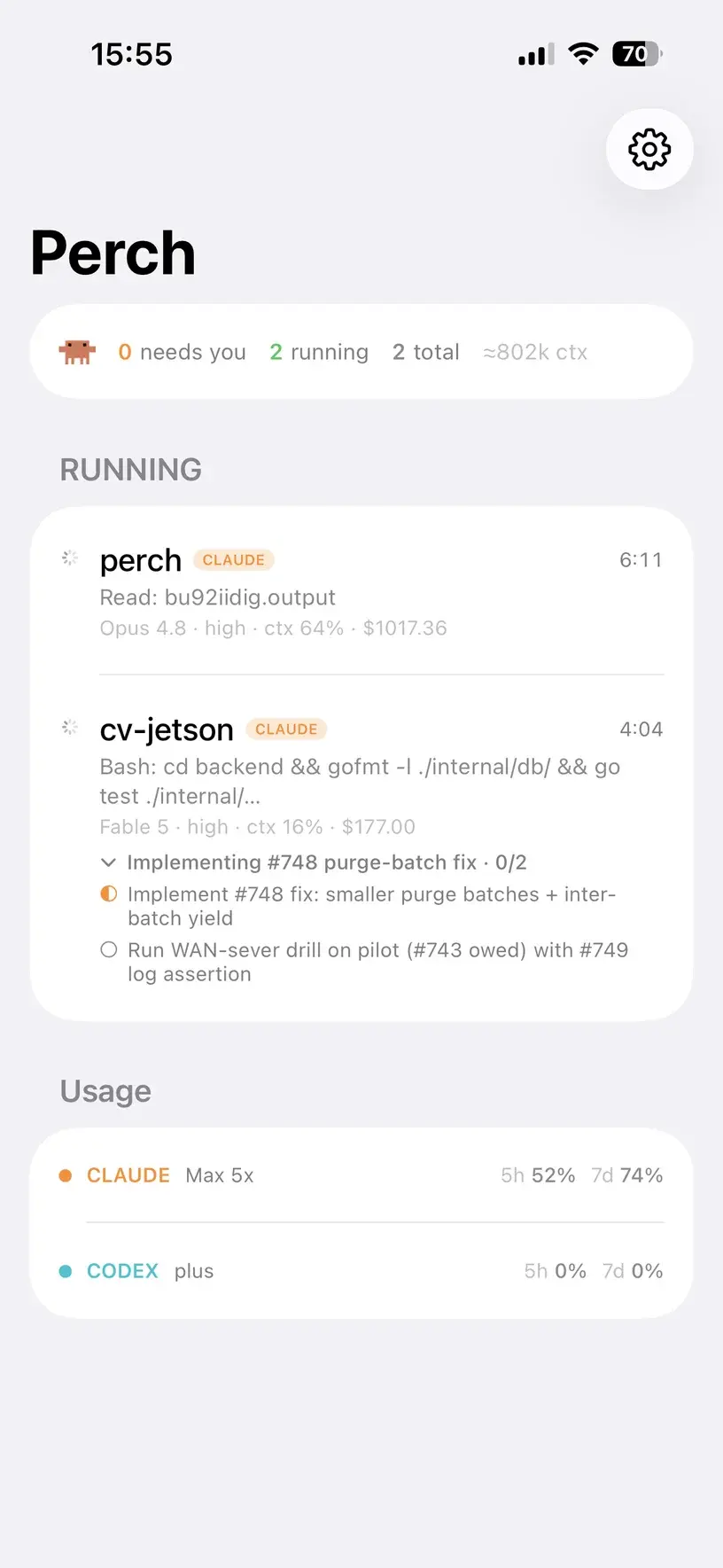
When an agent stops for a permission prompt, Perch puts Allow and Deny on your iPhone’s notification and your Apple Watch. Face ID, one tap, and the answer reaches your Mac while it sits locked on the desk. It works the same way for Codex, OpenCode and Droid.
- Approvals included with the Mac licence
- No monthly fee
- iOS 18 or later
What happens when an agent asks
1
The agent stops at a permission prompt
Perch's hooks hear about it the moment the prompt is drawn, and the session's row in your menu bar turns amber.
2
Your iPhone shows Allow and Deny
The notification carries both buttons, and a Live Activity on your lock screen and in the Dynamic Island counts down the time you have to answer.
3
Allow asks for Face ID first
So a phone left on a table can't approve anything.
4
Your answer goes straight to your Mac
Over the encrypted connection your phone paired with — the push only wakes the phone. Perch waits for your Mac to confirm, re-sends the answer if the connection dropped, and says plainly if the window had already closed.
5
No answer? The terminal takes over
If nobody answers in time, the agent's own prompt appears at the terminal, exactly as if Perch weren't there. Nothing is approved for you.
Which agents you can answer from your phone
Answering from the phone means handing the decision back into the agent, and that only works where the agent gives Perch a way to do it. Where it doesn’t, the table says what you get instead.
| Agent | From your phone | Worth knowing |
|---|---|---|
| Claude Code | Allow and Deny | 45 seconds to answer. “Allow and don't ask again” when Claude suggests a rule. |
| Codex | Allow and Deny | 45 seconds. Codex runs Perch's hook only once you've trusted it with /hooks — Perch tells you if you haven't. |
| OpenCode | Allow and Deny | 5 minutes. OpenCode 1 and 2; OpenCode 2 adds “Allow and don't ask again”. |
| Droid | Allow and Deny, in tmux | Perch checks the terminal still shows the same dialog before pressing anything. |
| Cursor | Not available | Cursor's approval hook fires before every shell command, not only the ones that need you, so approvals stay in Cursor itself. |
| Amp | Alert only | Perch sees the thread waiting and tells you; the approval is given at the terminal. |
| Antigravity CLI | Alert only | Seen and sent to your phone; answering it from the phone isn't built yet. |
| Devin | Not available | Devin's permission event never fires, so there is no prompt for Perch to see or forward. |
| Muse Code | Not yet | Its approval prompt hasn't been measured yet. |
Set it up in five minutes
1
Install Perch on your Mac
macOS 13 or later. It installs its own hooks into each agent it finds — there is no config file to edit.
2
Get Perch Companion on your iPhone
Free on the App Store (Perch – Agent Monitor), iOS 18 or later. The licence lives on the Mac, so there is nothing to buy on the phone for approvals.
3
Pair the two
On the Mac, open Settings → Companion, turn on “Allow iPhone to connect”, and scan the QR code with Perch Companion.
4
Turn on alerts
In the same pane, turn on “Send alerts to iPhone (background push)”, and allow notifications when your iPhone asks.
5
Away from home? Add Tailscale
Pairing works over your Wi-Fi. With Tailscale on both the Mac and the iPhone, approving works from anywhere the phone has a connection.
More than yes or no
And for the alerts themselves — needs you, finished, rate limit, usage running low — see getting notified when an agent needs you.
Allow, and stop asking
When Claude Code suggests a rule, a third button saves it — the exact rule the terminal’s own “don’t ask again” would save, named on the button, nowhere wider.
Claude’s questions
A multiple-choice question from Claude Code is a tap through on the phone or the watch. Off by default, in Settings → Notifications.
From your wrist
Allow and Deny on the Apple Watch notification, Double Tap to confirm, and a watch-face timer for how long the top session has waited.
Type a reply, with Perch Pro
Read the whole conversation and type a new instruction into the session from your phone. A subscription, bought in the iPhone app. What Pro adds.
Approving from a phone, without the risks of it
Your answer never goes through a server
The decision travels from your phone to your Mac over the paired connection — encrypted, with a fresh key for every connection — on your Wi-Fi or your own tailnet. The push relay carries the alert itself and stores only a hashed licence identity and your phone’s push token.
The right request, or none
With several requests waiting, a tap answers the one its alert named, and Perch refuses rather than guesses when it can’t tell them apart. A reply can’t be typed into a session waiting on a permission, where Enter would mean Yes.
It tells you what happened
An answer is never shown as “Allowed” unless your Mac received it. One that arrives too late is told the request was already settled, instead of going quiet. What leaves your Mac.
Other ways to do it
Claude Code’s hooks can run any script when a permission prompt appears, and a script can send a push to your phone through a notification service. Several open-source projects do exactly that, and for one agent on one machine it works.
What Perch adds is the rest of it: every agent you run in one place, answers that reach the Mac directly rather than through someone else’s server, Face ID before Allow, a countdown that matches the agent’s real deadline, the watch, and the terminal taking over cleanly when nobody answers.
Questions